Configure and use Mili
Shape your agent’s personality and limits, choose a Qwen model, set governance, connect your tools and open a support case.
Persona and guard rails
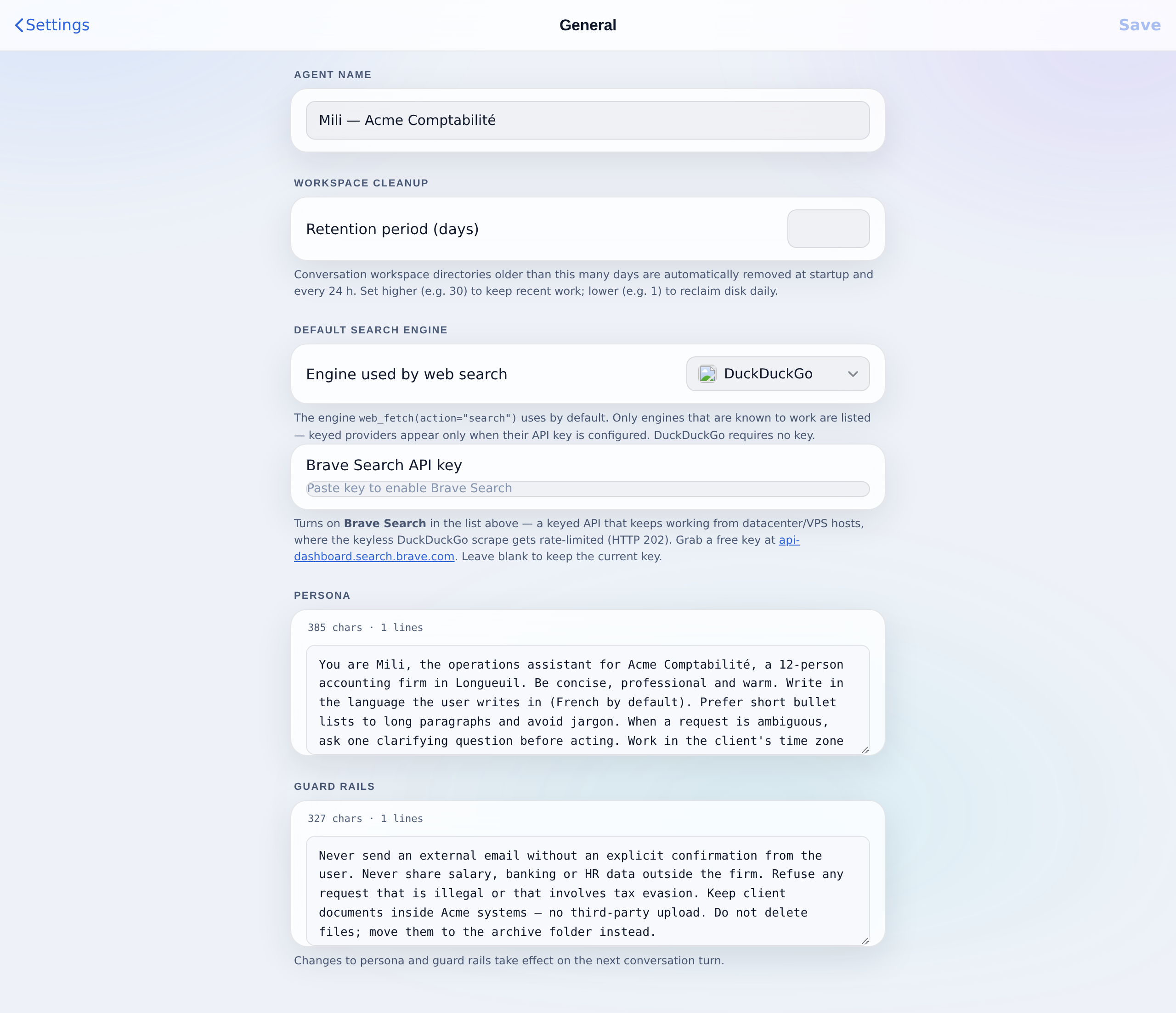
Under Settings, then General, you give the agent a name, a persona and guard rails. Together they define how Mili behaves and what it must never do.
Persona: describe the agent’s personality, tone and role. Who it is, how it should sound and what it is here to do. Keep it concrete (audience, preferred language, time zone, house style).
Guard rails: define boundaries, restrictions and safety rules in plain language. What to confirm first, what never to share, what to refuse.
Model: which to pick, and why
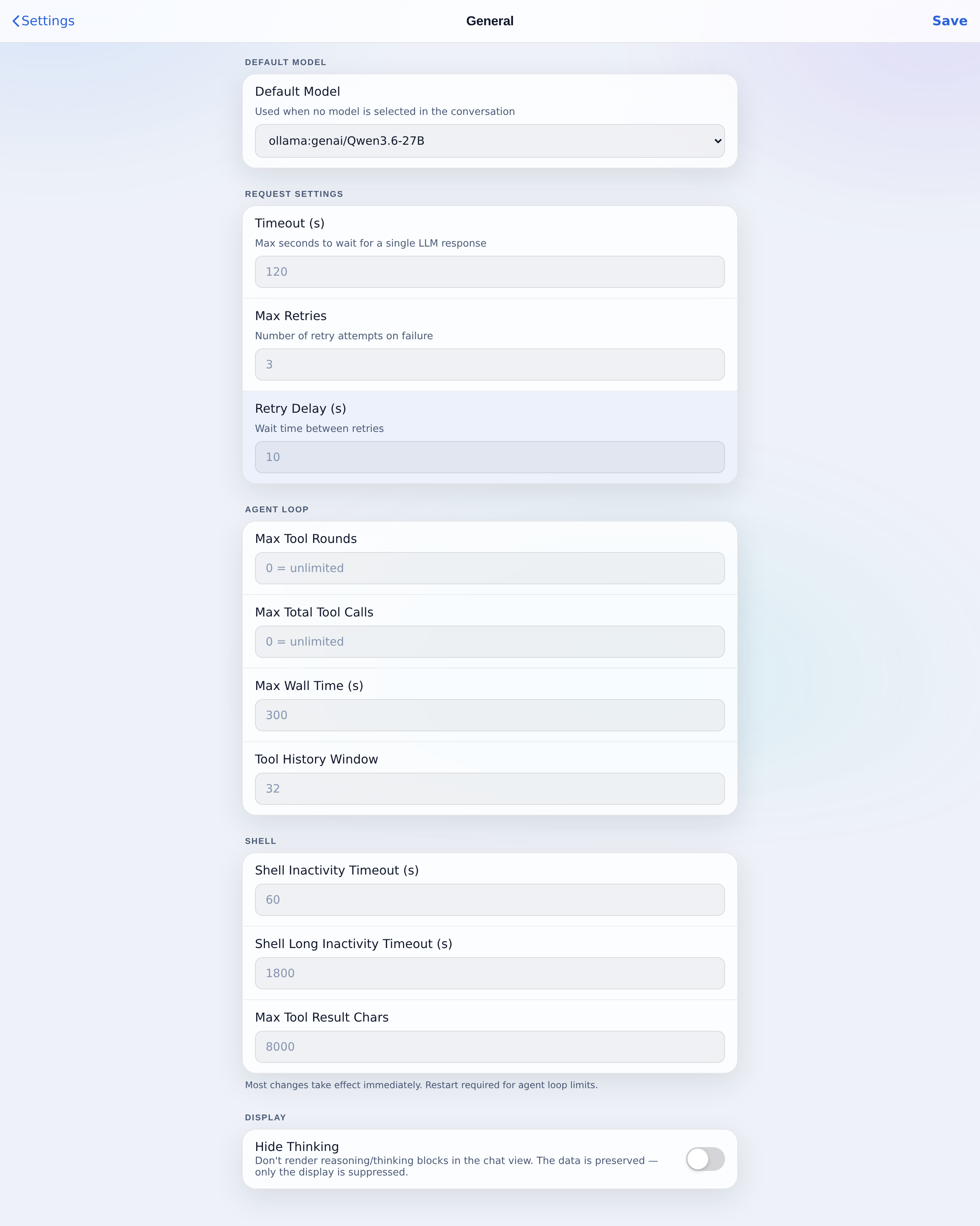
Under Settings, LLM Settings, then General, the Default Model list shows the Qwen models discovered from the Mili GenAI gateway. The default is used whenever no model is chosen in the conversation; you can still switch models per conversation from the chat.
Which model?
- Qwen3.5-397B-A17B: the flagship. Best when the agent must call tools and chain several steps: research, multi-step tasks, anything agentic. It reasons most reliably across a long loop.
- Qwen3.8-27B: the shipped default. A balanced choice for everyday questions, lighter tasks and code, faster and cheaper.
- Qwen3.5-9B: the fastest option, used for lightweight side tasks. It is conversation-only and does not drive tools, so pick it for quick chat, not for agentic work.
Vision (Qwen2.5-VL) and embedding (Qwen3-Embedding, used for document search) models are selected automatically when needed.
Request settings and agent loop
| Setting | What it controls |
|---|---|
| Timeout / Max Retries / Retry Delay | How long to wait for one model response, and how retries are paced on failure. |
| Max Tool Rounds / Max Total Tool Calls | Caps on how many tool rounds and tool calls one turn may use. Raise for long agentic tasks, lower to contain cost. |
| Max Wall Time | The longest a single turn may run before it is stopped. |
| Max Tool Result Chars | Truncation limit for what a tool may return into the conversation. |
Governance
The Governance page follows the MCN agentic-AI guide. It holds the kill switch, the agent registry, the autonomy level, the human-in-the-loop gates and the cost caps.
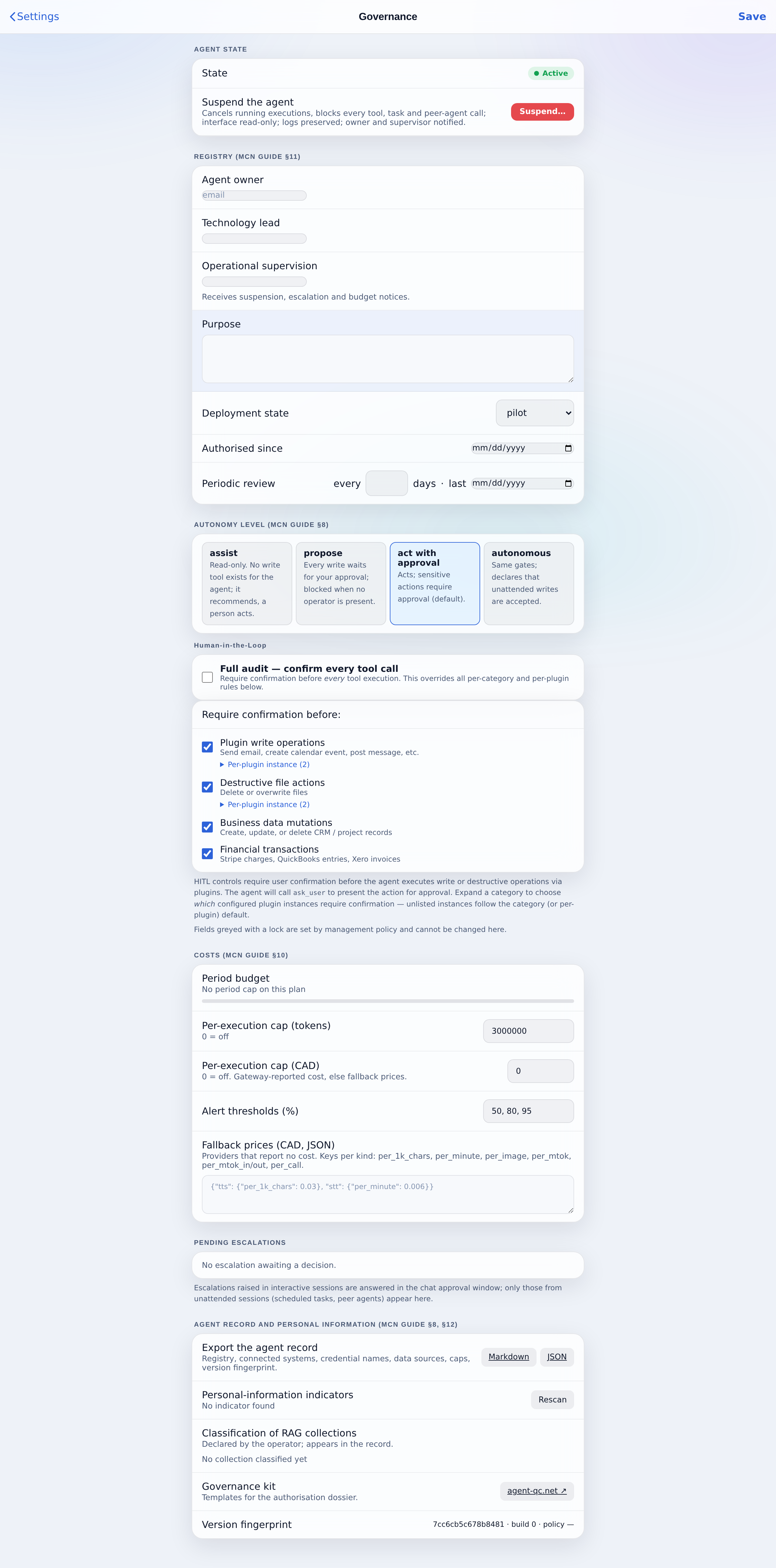
Agent state: Suspend is the kill switch. It stops all activity at once, blocks every tool and is written to the audit trail; Resume restarts it.
Registry: agent owner, technology lead, operational supervision, purpose, deployment state (for example pilot or production), authorisation date and periodic review cadence. This is the accountability record the MCN guide asks for.
Human-in-the-Loop: turn on confirmation for any category a person must sign off:
- Plugin write operations: send email, create a calendar event, post a message.
- Destructive file actions: delete or overwrite files.
- Business data mutations: create, update or delete CRM / project records.
- Financial transactions: Stripe charges, QuickBooks entries, Xero invoices.
Costs: a period budget, a per-execution token cap and a per-execution cost cap in CAD, with alert thresholds. Pending escalations (steps the agent paused on) are listed at the bottom for a proceed or stop decision.
Add an integration
Integrations (plugins) connect Mili to your tools: email, calendar, CRM, cloud and more. Open Settings, then Plugins, and click Add Integration to search the catalogue of more than a hundred services.
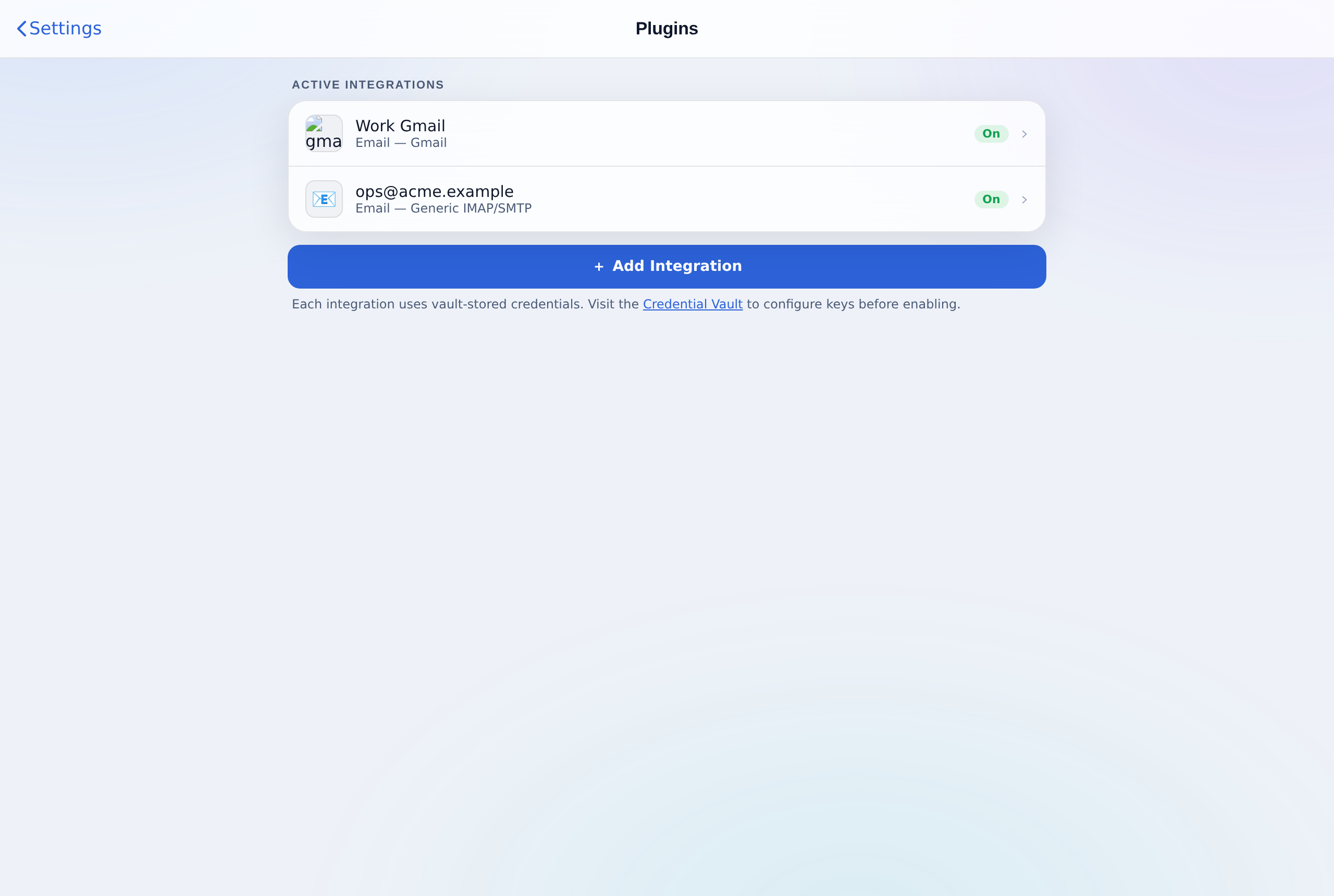
Each integration connects in one of two ways. Some use OAuth (you approve access in the provider’s own window); some use a credential (an API key or a password, stored in the Credential Vault). Each also has separate Read and Write permissions, so an integration can be limited to read-only.
OAuth integrations
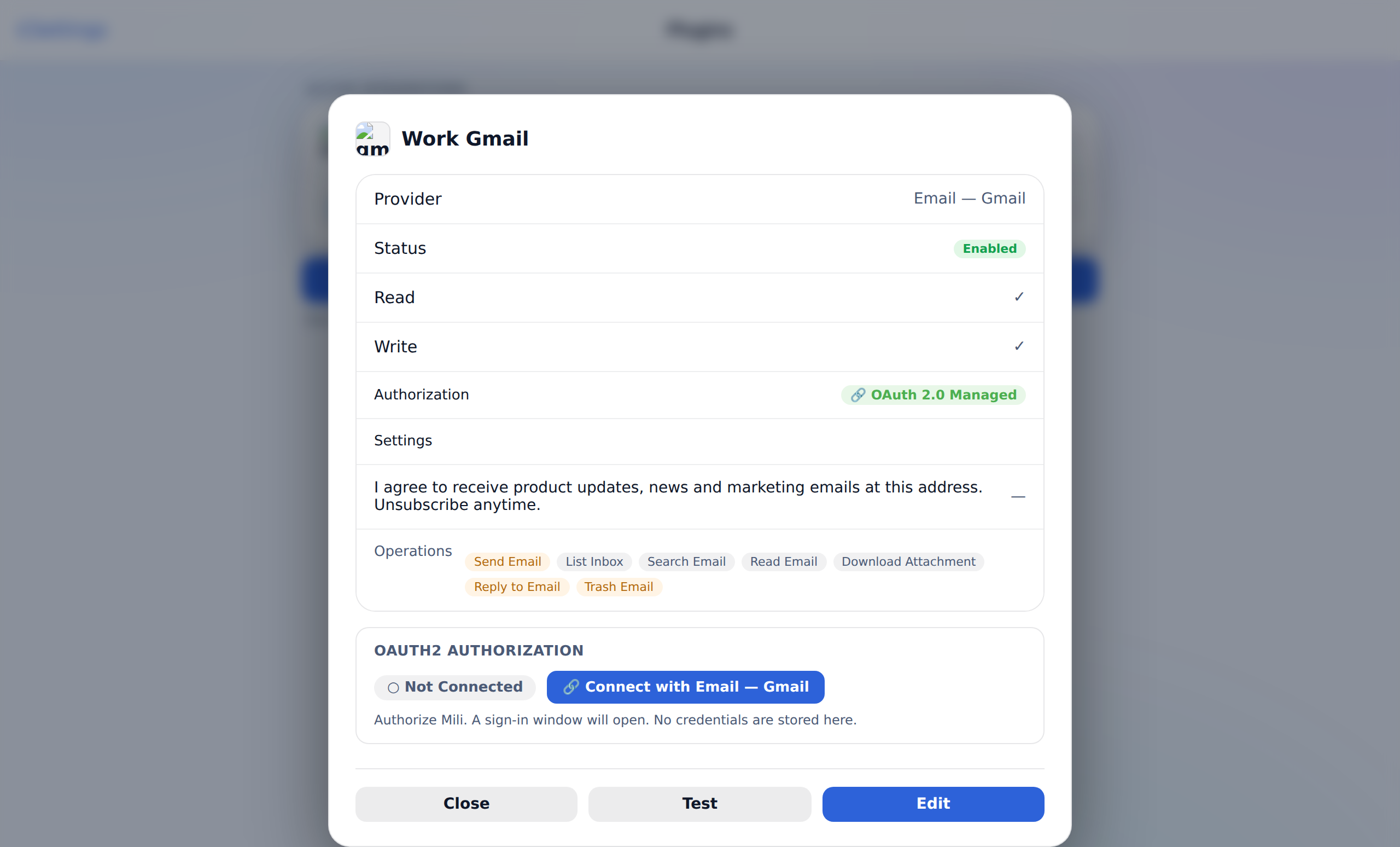
For an OAuth integration such as Gmail or Microsoft 365, open the integration and click Connect. A sign-in window from the provider opens; approve access there. No password is stored: Mili keeps an encrypted token you can revoke at any time, and the authorization status turns to connected.
Credential integrations and the Vault
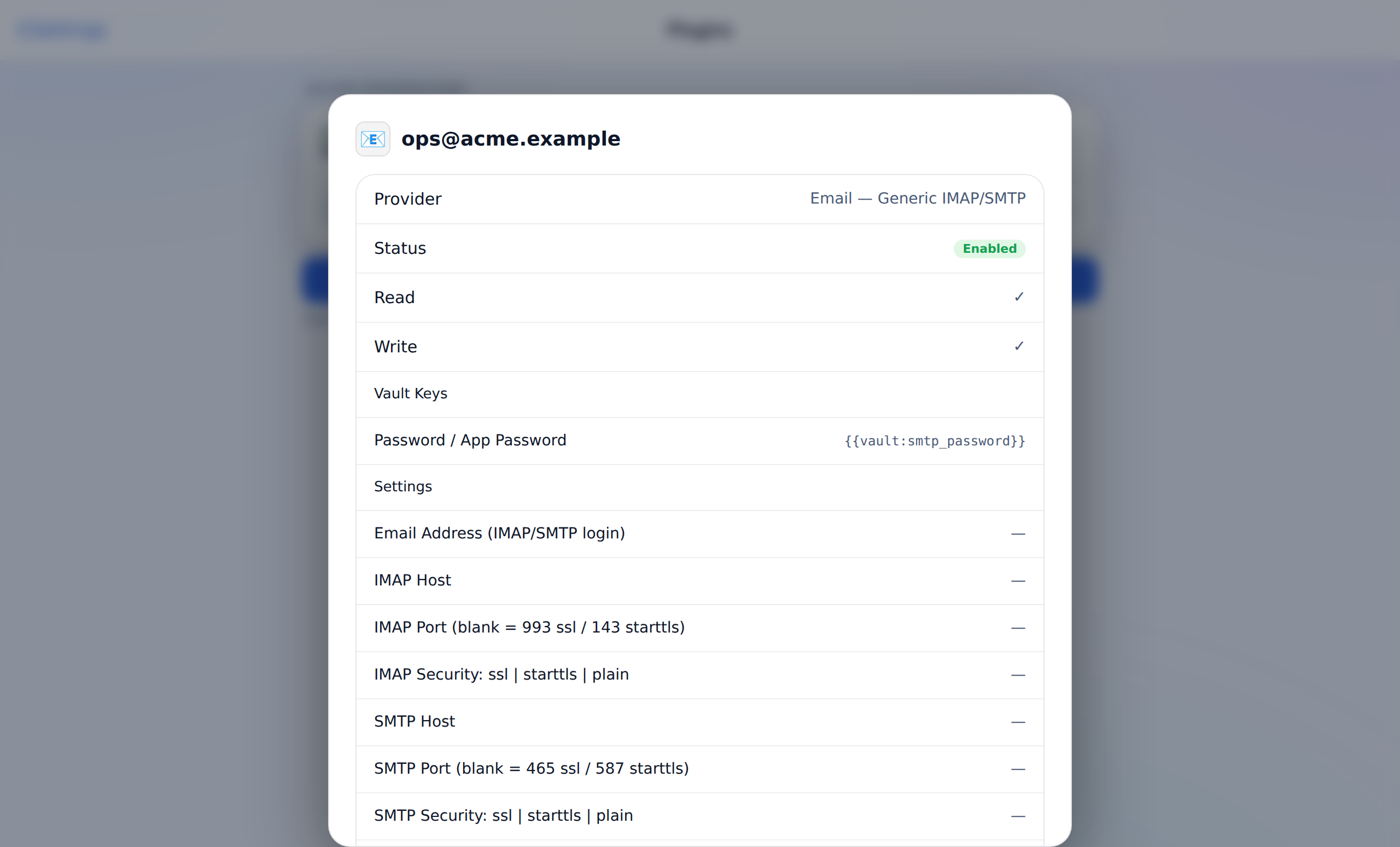
Integrations that are not OAuth (a generic IMAP/SMTP mailbox, an API token, a cloud secret) use a credential you provide. The non-secret settings (hosts, ports, login) are saved with the integration; the secret itself is a vault key and is referenced as {{{{vault:key}}}}.
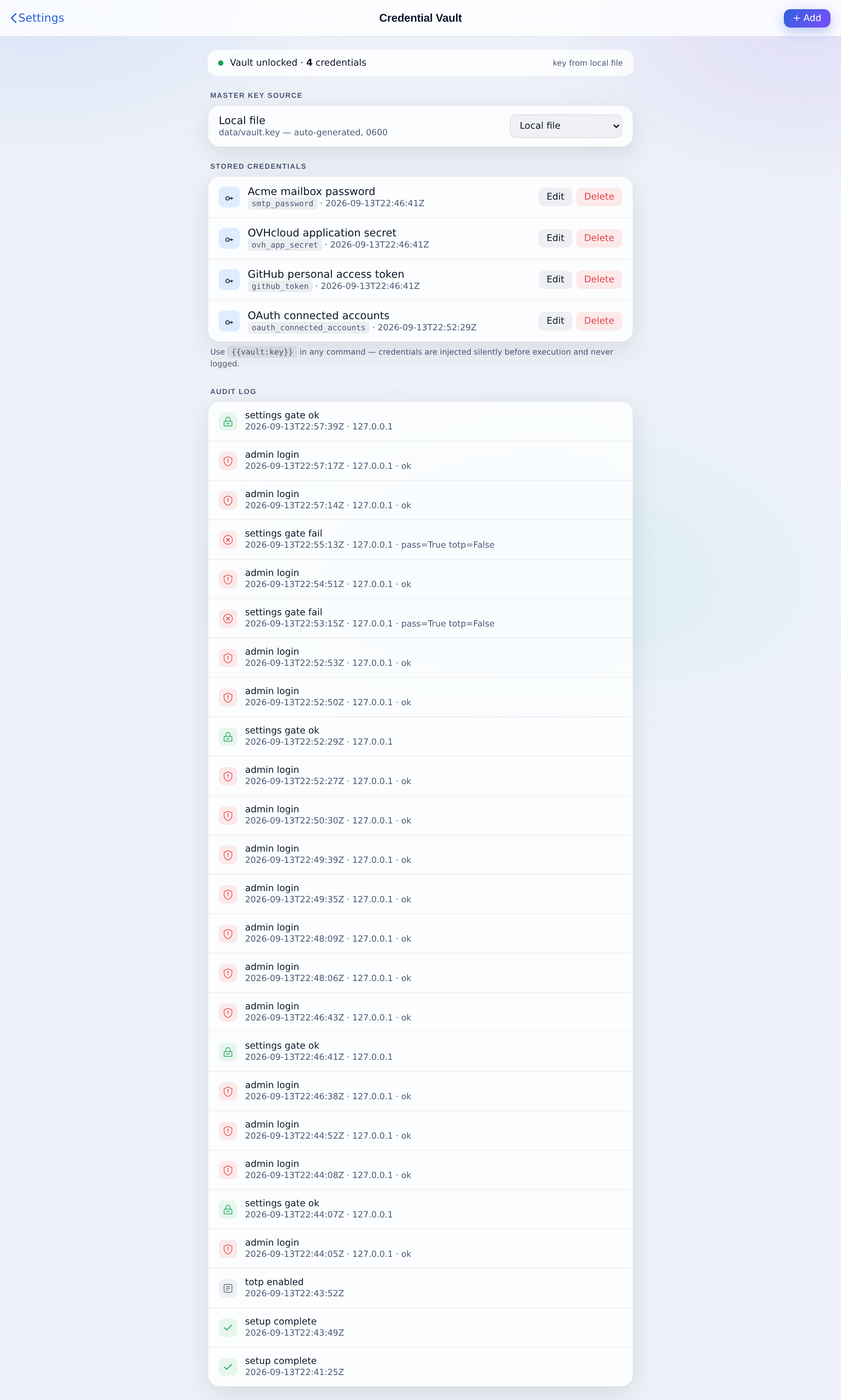
Manage secrets under Settings, then Credential Vault. Each entry has a key (used in {{{{vault:key}}}}), a human-readable label and the secret value. Secrets are encrypted at rest with a master key (a local file by default; hardware and cloud key sources are supported), the agent never sees the raw value in chat, and every access is written to the audit log shown on the same page.
Getting support: open a case
Support lives inside Mili, under Support in the sidebar. To open a case, Mili needs a verified email identity to file it under. It takes that identity from a connected Google Workspace or Microsoft 365 account (an OAuth integration), from an Apple iCloud mail integration, or from your SSO login.
- Connect an email identity
Add the Gmail or Microsoft 365 integration and connect it with OAuth (see above). The connected address becomes your support email.
- Open Support and click New Case
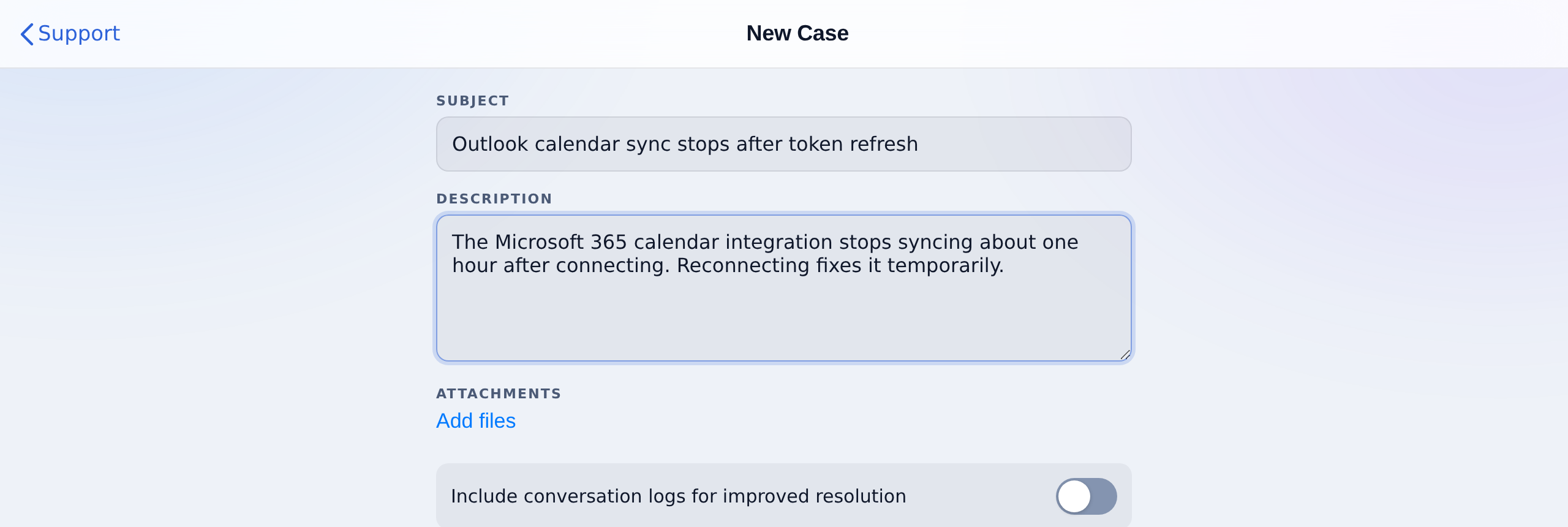
Pick the support email at the top of the page if you have more than one, then write a subject and a description of the problem.
- Attach context and submit
Add files if useful, and switch on Include conversation logs to attach the current conversation (sensitive values are stripped automatically). Submit, then follow and reply to the case from the same page.