
Install the Mili Management Server
The central console for your Mili fleet: admission, heartbeats, policies and the features that need it. Runs on macOS or Linux.
Overview
The Mili Management Server (the console) manages many Mili agents from one place: admission of new agents, heartbeats, policies and persona/guard-rail overlays, session review and the inter-agent activity graph.
mili-mgmt); Docker Desktop is not required. On Linux it uses the host’s Docker. Its engine is independent of an agent’s, so an agent and the console can share one Mac. The console interface is in English.What the Management Server unlocks
Several agent features depend on the Management Server. Once an agent calls home to a console and is accepted, these become available across your fleet:
Hardware requirements
The console is a lightweight Flask application plus a self-upgrade supervisor, far lighter than an agent.
| Component | Minimum | Recommended |
|---|---|---|
| Operating system | macOS 13+ · Linux x86-64 / arm64 (64-bit) | — |
| Memory (RAM) | 8 GB | 16 GB |
| CPU | 2 cores | 4 cores |
| Free disk | 200 GB | 200 GB or more |
MGMT_ENGINE_CPUS, MGMT_ENGINE_MEMORY and MGMT_ENGINE_DISK.Ports and network
Agents reach the console on port 8080. The console serves that port over HTTPS from first start, using a self-signed certificate it generates itself.
| Port | Direction | Purpose |
|---|---|---|
8080 | Inbound | Console dashboard, and the endpoint agents call home to (https://localhost:8080) |
443 | Inbound (optional) | Dedicated HTTPS for the Microsoft Office add-in, active only when Office integration is enabled |
Install the server
Linux
Run as root. We strongly recommend generating a strong shared secret at install time:
$ MGMT_SECRET=$(openssl rand -hex 32) \
bash -c "$(curl -fsSL https://www.mili.quebec/downloads/mgmt/install.sh)"
Or the plain one-liner (the installer mints a strong secret if you do not supply one):
Installs to /opt/mili-mgmt and uses the host’s Docker.
macOS
Run without sudo (the console engine is per-user):
bash -c "$(curl -fsSL https://www.mili.quebec/downloads/mgmt/install.sh)"
Installs to /Users/<you>/mili-mgmt. The first start builds the mili-mgmt engine VM and takes a few minutes.
https://localhost:8080. Because it uses a self-signed certificate, your browser shows the same “connection isn’t private” warning as the agent does; click Advanced, then Proceed.The shared secret (MGMT_SECRET)
MGMT_SECRET is the fleet-wide HMAC key every agent uses to authenticate its call-home. The installer prints it and persists it in .env (readable only by the owner). You can show it again at any time under Settings, then Call-Home Secret, which is also where a key rotation is started: a new primary secret is issued while the previous one stays valid as secondary until every agent has moved over.
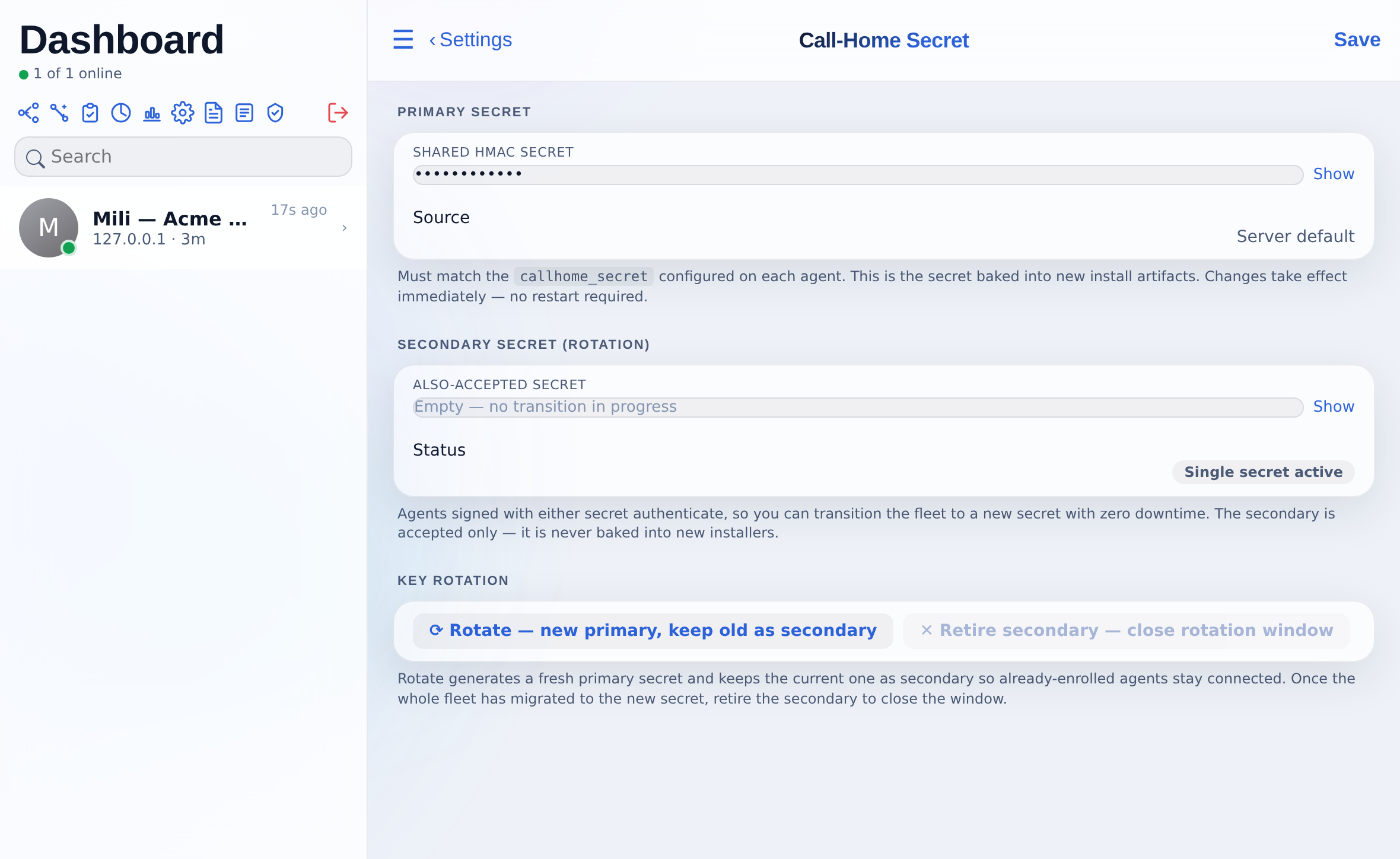
openssl rand -hex 32). Anyone holding this secret can present an agent to your console for admission.First sign-in
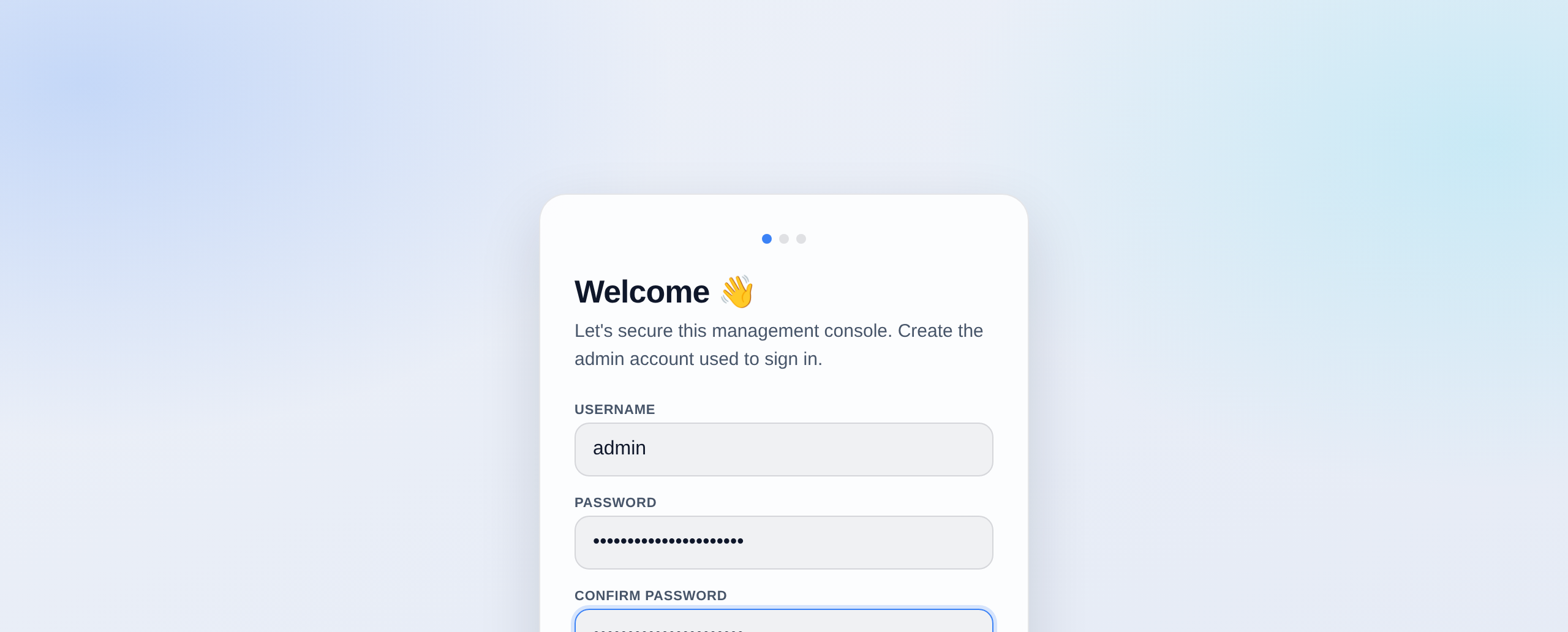
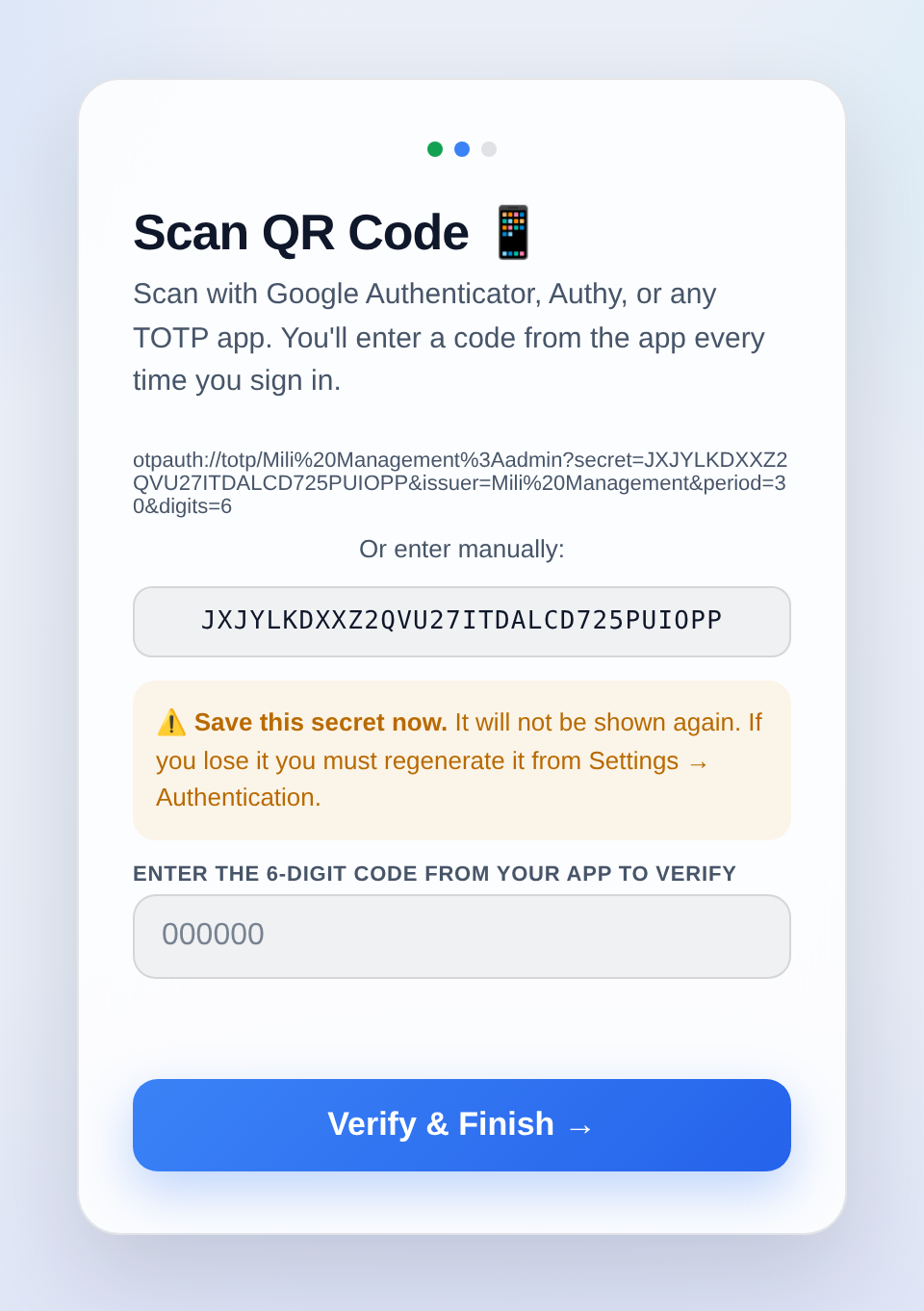
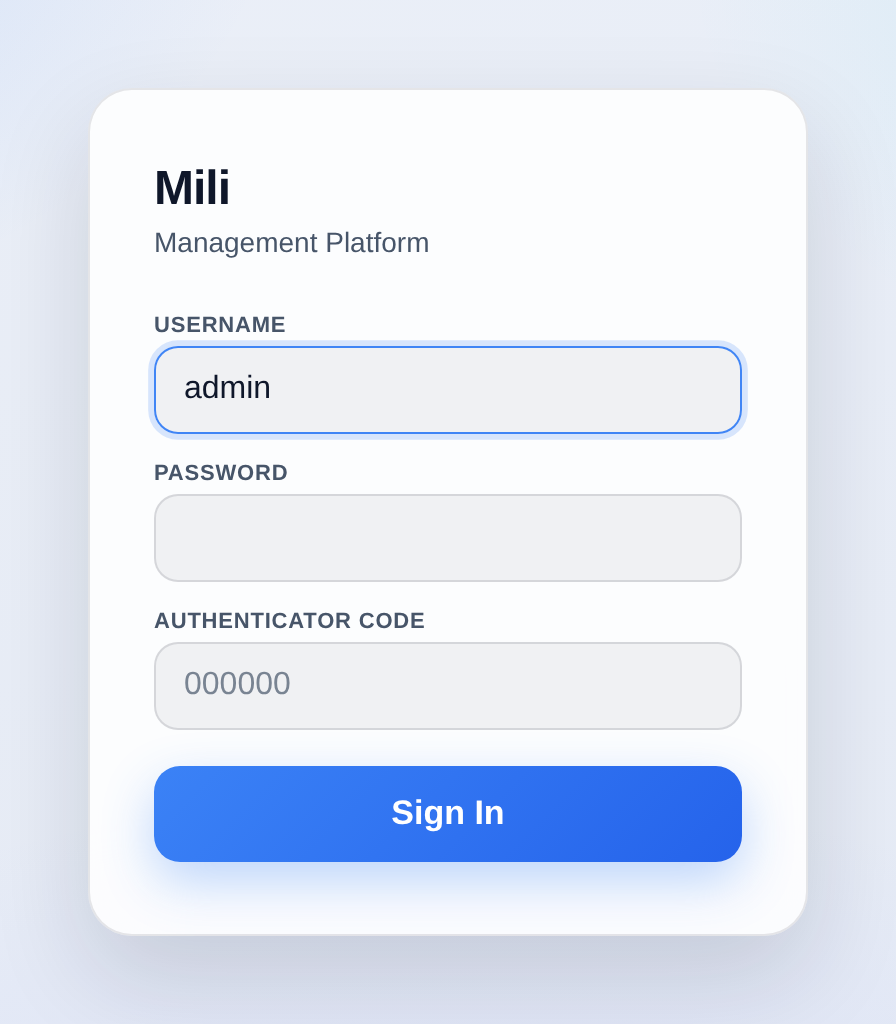
Open https://localhost:8080. On first run the console shows the same three-step wizard as the agent: create the administrator account (username defaults to admin, password at least 12 characters), scan the QR code in an authenticator app and confirm with a 6-digit code. There is no hard-coded default password.
SSL / TLS
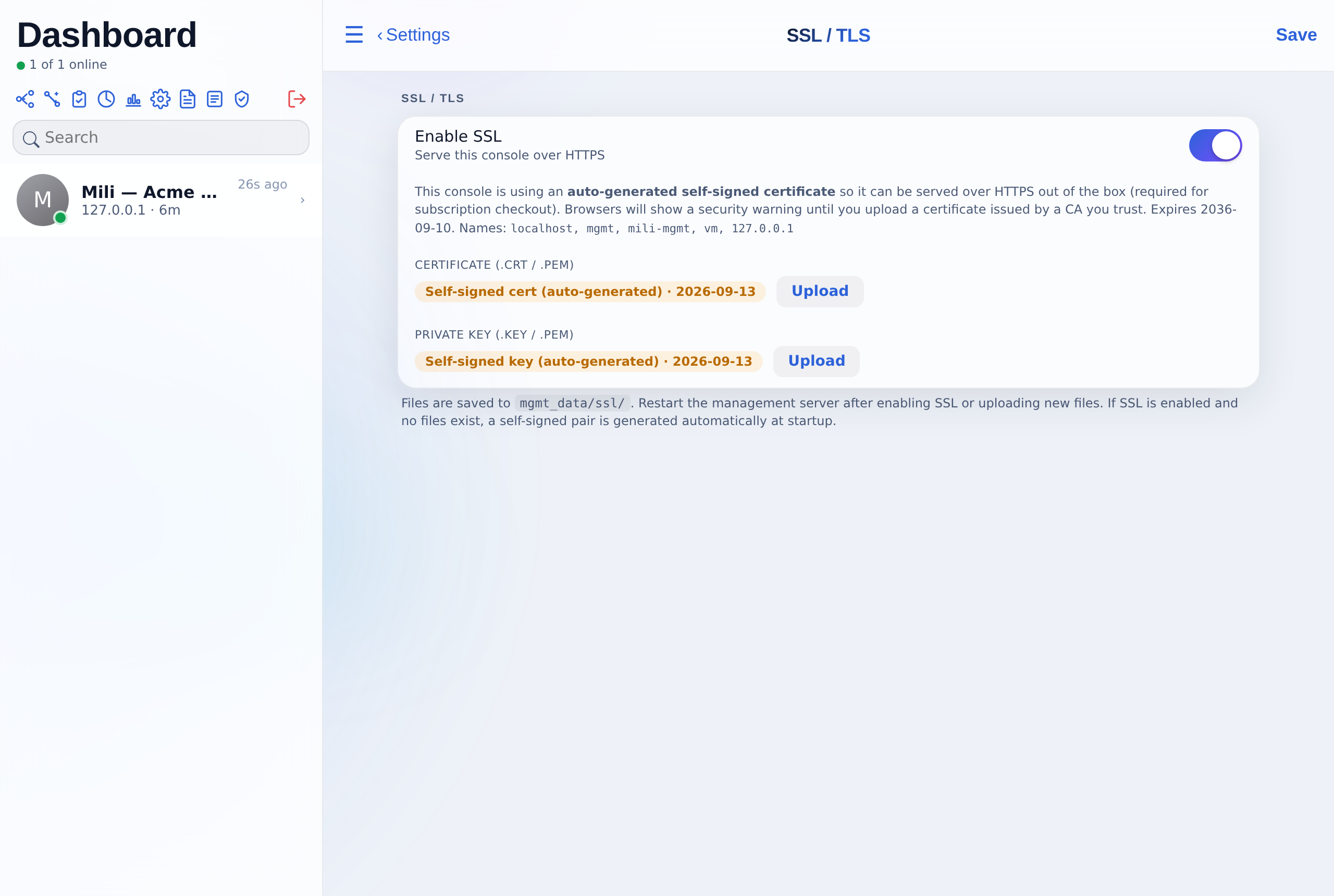
The console generates a self-signed certificate at first start and serves port 8080 over HTTPS. To replace it with a certificate issued by your CA, open Settings, then SSL / TLS, and upload the certificate (.crt/.pem) and private key (.key/.pem). A restart is required afterwards. If you prefer to terminate TLS at a reverse proxy, the console honours X-Forwarded-Proto.
Enrol your agents
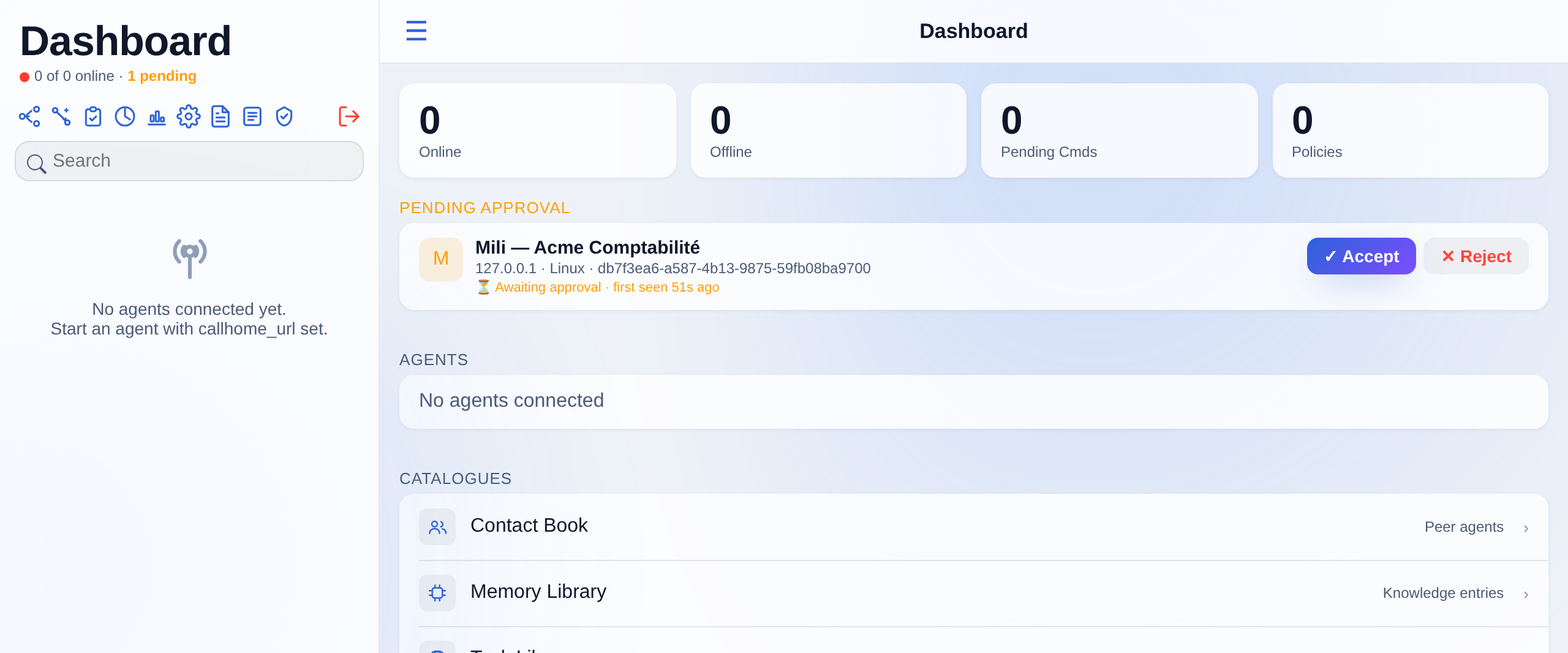
On each Mili agent, open Settings, then Callhome, enter this console’s URL and the shared secret, save and restart the agent. See the agent guide, Connect to a server. Within a heartbeat interval the agent appears on the console dashboard under Pending approval. Click Accept to admit it to the fleet (or Reject).
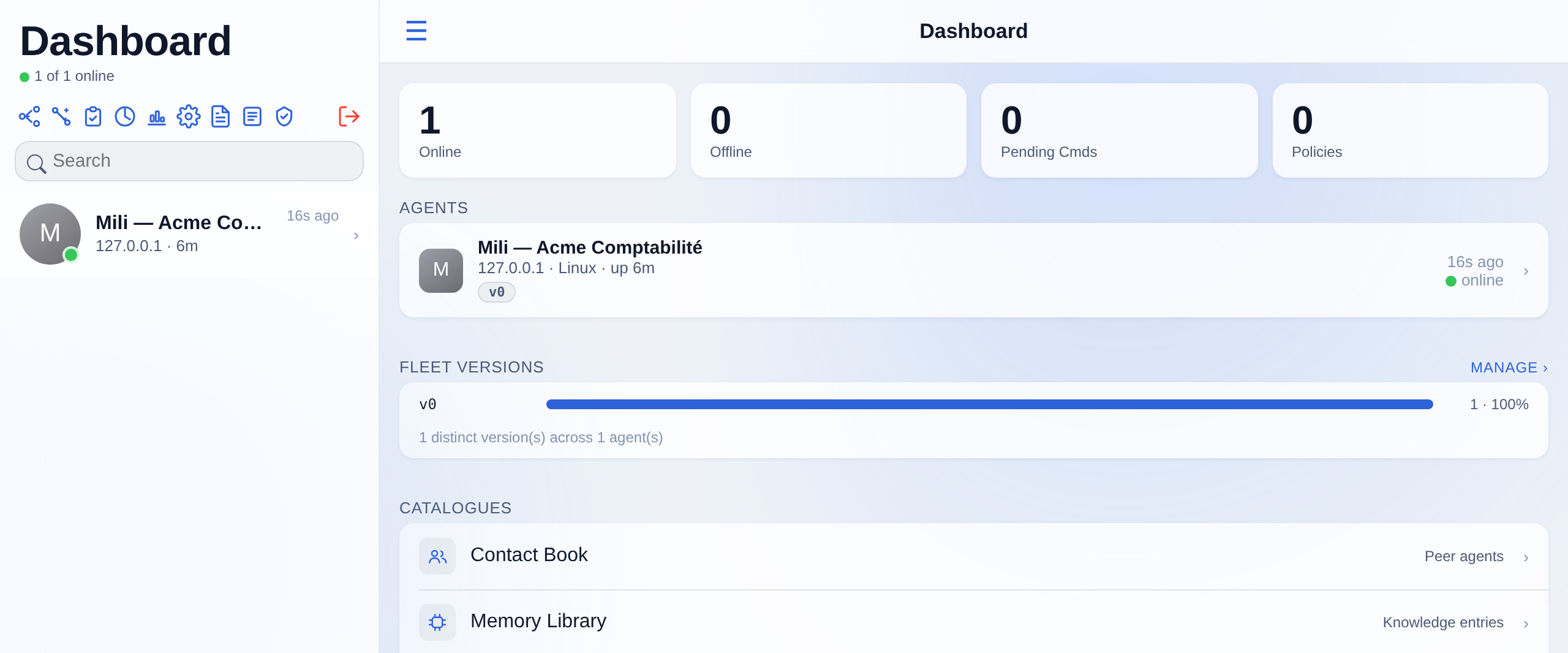
Once accepted, the agent shows as online with its host, platform and version, and the fleet version bar tracks upgrades across agents.
Troubleshooting
| Symptom | What to do |
|---|---|
| Server will not start after install | Check .env holds a real MGMT_SECRET (not a placeholder). Regenerate with openssl rand -hex 32 and re-run. |
| macOS: “must run as the logged-in user” | Re-run without sudo. |
| Agent never appears under Pending approval | Its call-home is being rejected: confirm the agent’s Callhome secret matches the console’s Call-Home Secret page, that it can reach port 8080, and that the agent was restarted after the change. |
Data and backup
All runtime state (agent registrations, vault keys, encrypted secrets, conversations, memory and sessions) lives in a Docker named volume, mgmt_data. A re-install never wipes it. On macOS the volume lives inside the engine VM, so take a backup from Settings, then Server Backup and Restore, before removing the engine.